
If you’re new here: OneCamp is a self-hosted workspace (chat, tasks, docs, calls, calendar and AI agents) that you install on your own server. It is open source and free for up to 25 people.
The last post ended on what the new timeline didn’t do: “there are no dependencies between tasks, so moving one task never moves another.” It does now. And the Projects page has two new views: every project on one timeline, and a workload that shows who has too much to do each week.
Tasks that wait on each other
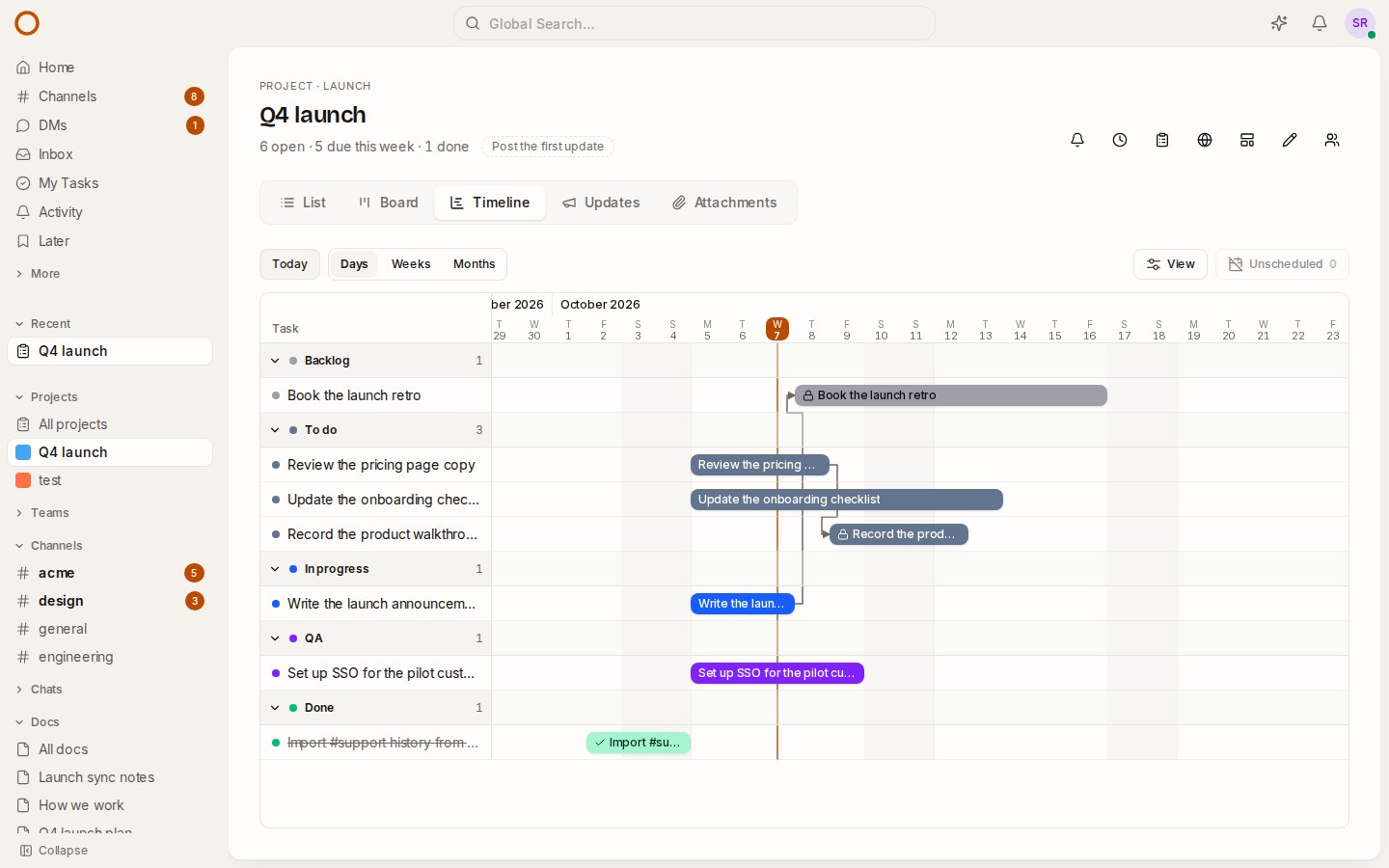
Some work can’t start until other work is done: the retro waits on the launch announcement, the walkthrough waits on the pricing copy. In OneCamp, a task can now wait on other tasks of its project, and the timeline draws an arrow from each one to the task waiting on it.
- On the timeline, point at a bar and drag the small handle at its end onto the task that waits on it.
- In a task’s panel, Dependencies lists what it’s waiting on and what it’s holding up. Waits on… adds one, which is also the keyboard’s way to do it.
- An arrow is grey while the plan holds, and turns red when the waiting task starts before the other is due. Finished work never turns one red.
- A task still waiting on open work shows a lock and how many it waits on: on the board, in the list and on its bar. You can see what’s blocked without opening anything.
When the plan slips
Say the launch announcement slips three days. Drag it on the timeline. The retro, which waits on it, moves along just far enough to start the day after the announcement is due. It keeps how long it runs and its times of day, and whatever waits on the retro moves after it. Each task that moved says so in its history.
Nothing moves earlier. Finished tasks and tasks without dates stay put, and a clash the move didn’t cause is left alone, red, for you to decide. If you’d rather move only the task you drag, turn off Move waiting tasks along in View.
A task can’t wait on a task that already waits on it, however indirectly. That would be a loop, and OneCamp says so instead of saving it.
Every project on one timeline
On the Projects page, Timeline now sits next to the table. Each project is one bar from the first day of its tasks to the last, filled as far as its tasks are done, and coloured by how its people last said it was going. Click a bar to open that project’s own timeline.
It’s the view for “what’s running when, across everything we’re doing”: a launch, a client project and a new hire’s first weeks, each against the others.
Who has too much this week
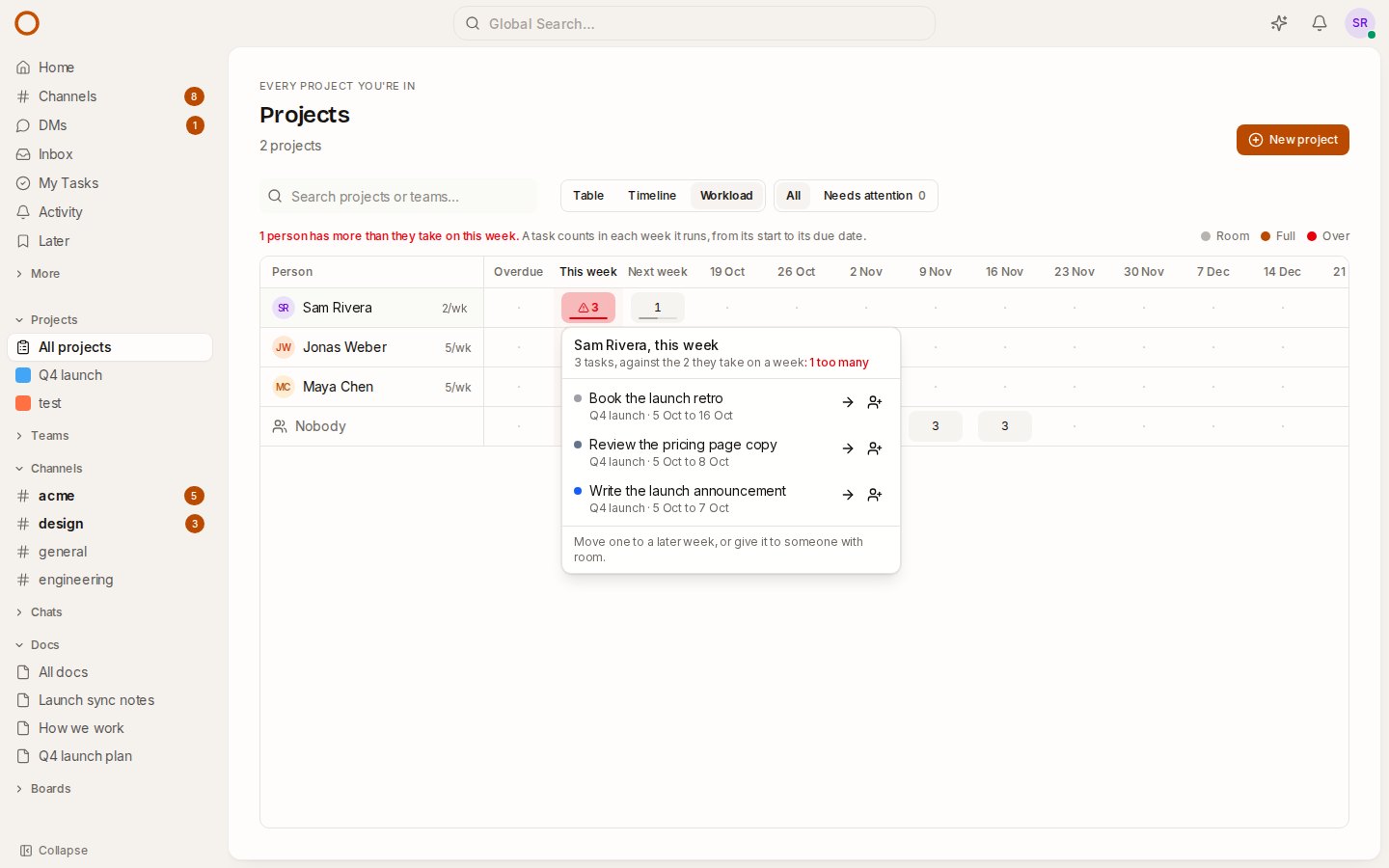
The third view on the Projects page is Workload (or press Ctrl/⌘ K and choose Go to Workload). Each person has a row and each week a column, from this one on. Each week shows how many of their open tasks run in it, across every project you’re in, against how many they take on: their capacity, five a week unless set.
- A week with room is grey, a full week is in the accent colour, and a week over capacity is red with a warning sign. The line above the grid says how many people are over this week.
- People are sorted busiest first, against their own capacity.
- Overdue collects what was due before this week; No dates counts the open tasks no week can show; Nobody is the row for tasks no one has.
Click a week to see its tasks and do something about them:
- → moves a task a week later, on the same weekday. An overdue task comes to next week instead. Anything waiting on it moves along, as on the timeline.
- Give it to… hands it to someone else in its project. The people with the most room that week come first, with their count beside them, so you’re not guessing.
Anyone can set their own capacity by clicking the 5/wk next to their name. The default is one task a working day, so someone who works three days a week might set three. A workspace admin can set anyone’s. A project’s admins can move and hand on its tasks; everyone else sees the same picture.
The point is to see an overloaded week while there’s still time to fix it, not after the deadline has passed.
Changes show up without refreshing
When a teammate moves a task, whether by dragging it, editing it in its panel or as part of a dependency, the new dates now appear on your board, list, timeline and open task straight away. That includes your own other tabs.
Made sturdier before release
Dependencies went through a hard review before release, and these were fixed:
- A finished task, or one that didn’t move, could push the tasks waiting on it weeks out. It can’t now: only what the move reaches moves.
- Two people linking the same two tasks in opposite directions at the same moment could create a loop. Now the second sees the first and is refused. A test makes both wait until both have read, and fails without the fix.
- A loop left in older data could push tasks years into the future, and a long chain could stop part-way. Chains are now planned in order, each task once.
- Adding a dependency twice, or removing one that wasn’t there, wrote lines in the task’s history. Neither does now.
- Moving a long chain on a big project repainted the page once per task. It now repaints once.
How it compares
- Asana: dependencies that move dates along need a paid plan (Starter and up), and workload needs Advanced.
- monday.com: the dependency column and workload are on Pro, $19 a seat a month.
- ClickUp: the workload view is limited to 60 uses on the free plan and 100 on Unlimited, and capacity per day needs Business Plus.
In OneCamp, all of it is in every edition, including the free one for up to 25 people, on your own server.
Try it
- Open the workload in the live demo, click a week, and hand a task to someone with room.
- Open the projects page, choose Q4 launch, then Timeline, and drag from the end of one bar to another.
- On your own server: onemana.dev/free gives you the install command, no email needed.
- The guides: Timeline and the projects overview and Workload.
- Already running OneCamp? Update to the latest release, with AI or without.