
If you’re new here: OneCamp is a self-hosted workspace (chat, tasks, docs, calls, calendar and AI agents) that you install on your own server. It is open source and free for up to 25 people.
Today’s two posts were about starting a project with its plan already in it. This one is about the weeks after: seeing the plan, moving it when things change, and knowing which of your projects needs you.
The timeline
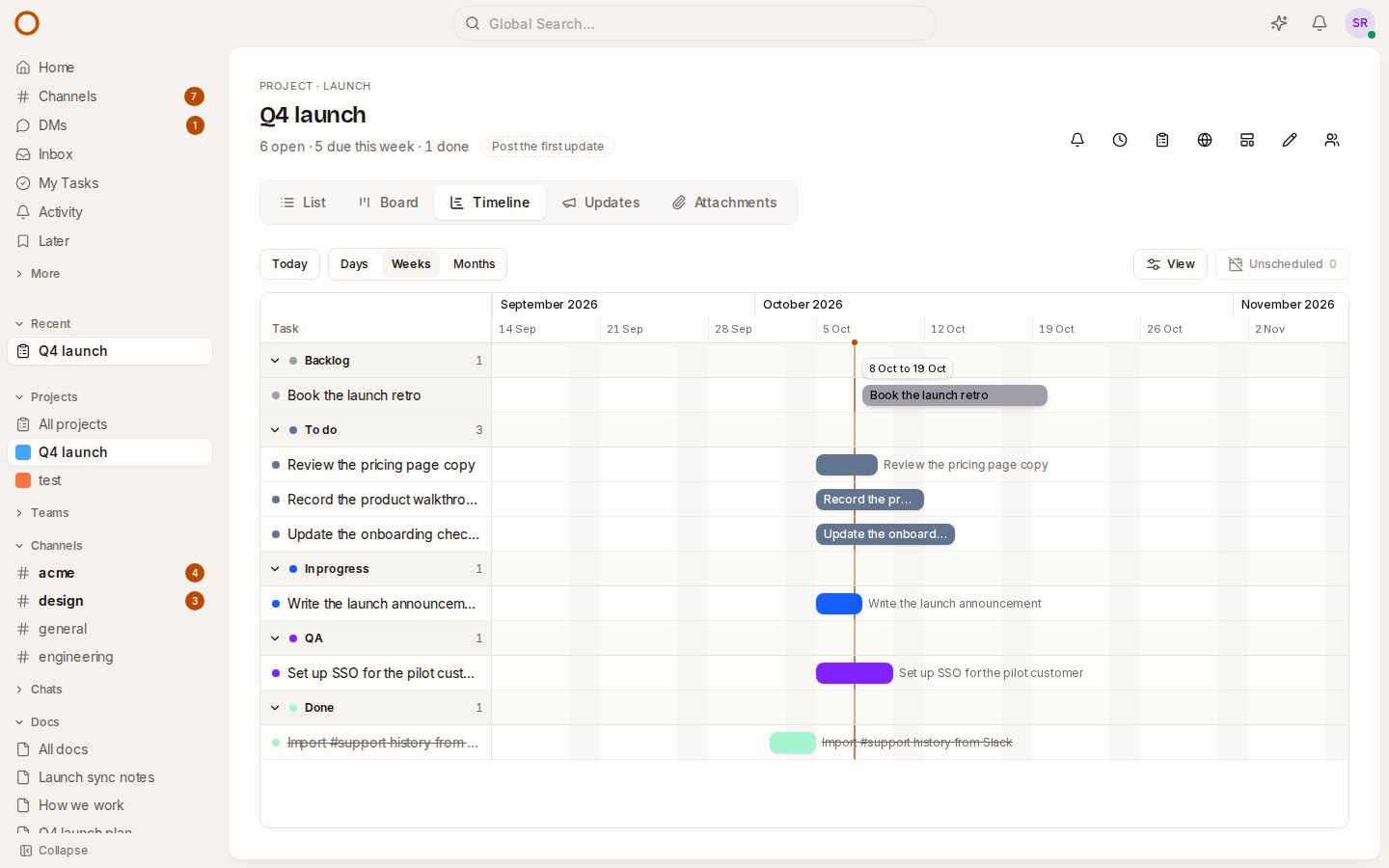
Every project now has a Timeline tab, next to List and Board. The picture at the top is the live demo’s launch project on it.
Each task is a bar from its start date to its due date, grouped by status in the board’s order (or by assignee, or not at all, from View). A line marks today. A task that’s past its due date and still open has a red outline. Days, Weeks and Months change the scale, and Today brings you back.
When the plan changes, change it where you can see it:
- Drag a bar to move the task. Its start and due dates move together, and keep their times of day.
- Drag either end to change when it starts or when it’s due.
- Unscheduled lists the open tasks that have no dates yet. Drag one onto a day and it’s due that day.
- From the keyboard, Tab to a bar, then the arrow keys move it a day and Shift with an arrow changes when it’s due. A run of presses is saved as one change, so the task’s history doesn’t fill up with one-day steps.
A move shows on the board and the list straight away, and goes into the task’s history like any other change. Only a project’s admins can move its tasks, as on the board. Everyone else sees the same timeline and can open any task from it.
The timeline opens with the plan in view. If your project starts next month, you see next month, not four empty weeks around today.
On a phone, the timeline shows the plan. Tap a task to change its dates.
What it doesn’t do yet: there are no dependencies between tasks, so moving one task never moves another.
Your client sees the plan too
If you share a project with a client (a link, no account), their page now switches between Board and Timeline. They see when each task starts and is due, and open any task to read it, comment on it or approve it, as the link allows. They can’t move anything.
For an agency, that’s the “where are we” call you no longer need: the plan, as it is today, on a link your client already has.
Every project on one page
The Projects page used to be a list of names. It’s now the page you open on a Monday morning, and it has a place in the sidebar: All projects, at the top of Projects.
- Health: what each project’s latest update said (on track, at risk, off track, on hold, done).
- Done: how much of it is finished, as a bar.
- Tasks: how many are open, overdue and due this week, counted in your own time zone.
- Last update: how long ago anyone said how it’s going.
Needs attention narrows the list to the projects that are off track, at risk, or have something overdue. Sort by what needs attention first, by the least done, or by the oldest update to see which project nobody has written about in a while. Your choice is remembered.
The health comes from project updates, so a project’s people say how it’s going once a week and everyone above them reads it here.
Templates on onemana.dev
The templates from this afternoon’s post now have their own section on the onemana.dev homepage and a place in the top menu. Each one opens its whole plan, week by week.
Fixed
- A date changed in a task’s panel didn’t show on the board or the list until they were loaded again. Both now show it at once, and so does the timeline.
- A deleted task could stay on the project’s board until the board was loaded again.
- Changing the dates of a task someone had just deleted brought it back. It’s now refused, with a message that the task was deleted.
How it compares
A timeline is a paid feature almost everywhere: Asana’s needs a paid plan, Trello’s needs Premium, and monday.com’s needs its Standard plan or above. In OneCamp it’s in every edition, including the free one for up to 25 people, on your own server.
Try it
- Open the live demo on the projects page, open Q4 launch, and choose Timeline.
- On your own server: onemana.dev/free gives you the install command, no email needed.
- The guide: Timeline and the projects overview.
- Already running OneCamp? Update to the latest release, with AI or without.