
If you’re new here: OneCamp is a self-hosted workspace (chat, tasks, docs, calls, calendar and AI agents) that you install on your own server. It is open source and free for up to 25 people.
The previous post was about getting through a list of tasks quickly. This one is about the list you don’t have to write. Most of the projects a small team or an agency starts are ones it has run before: another client, another launch, another new hire. Until now each began as an empty board, and someone typed the same fifteen tasks from memory, forgetting a different one each time.
Pick a template, pick a day
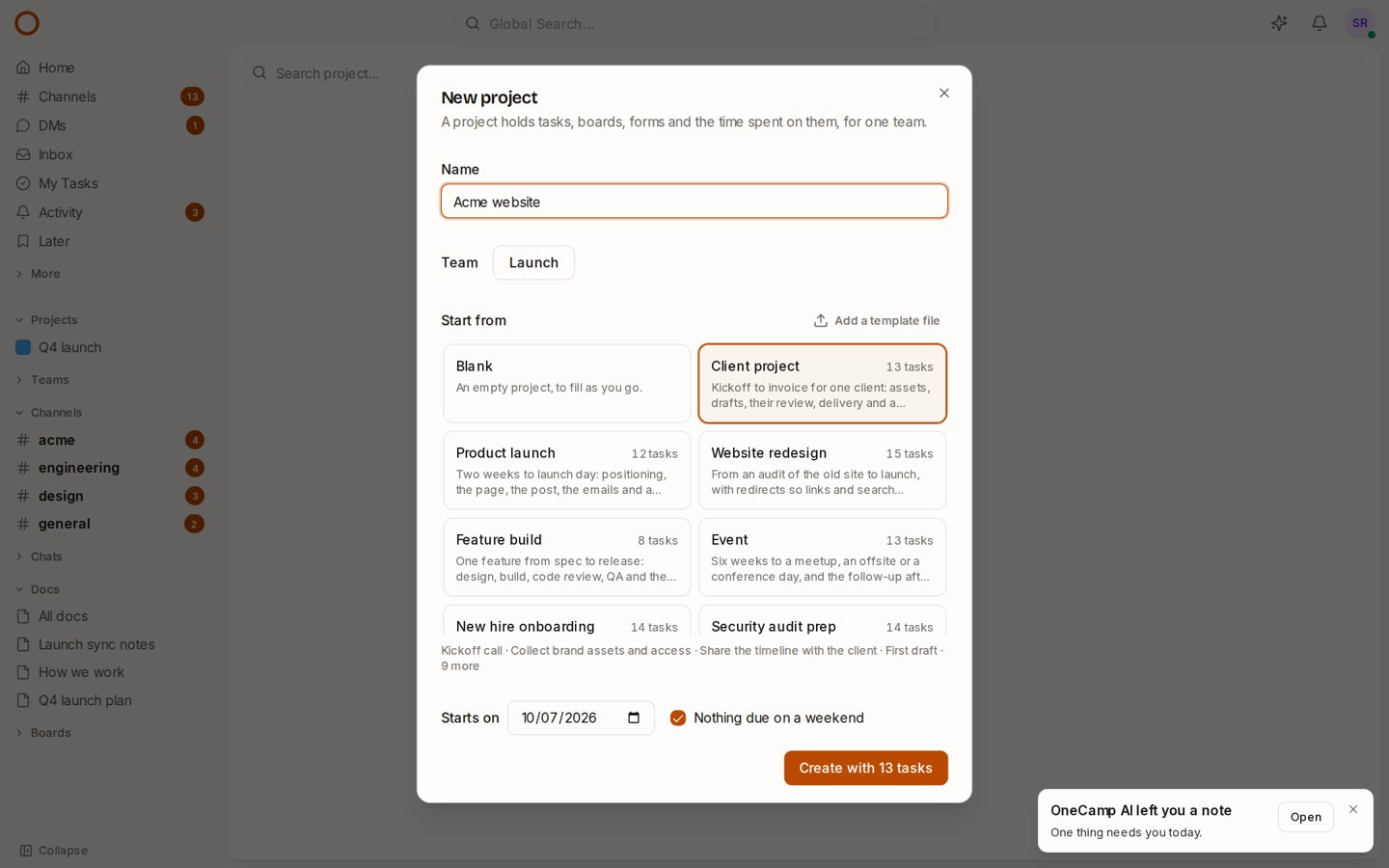
New project now has a Start from list under the name and the team. Choose a template and the line beneath it shows its first tasks. Then choose the day it Starts on.
Every date in a template is counted from that day. Start a client project on Monday and the kickoff call is due Tuesday, the first draft the week after, and the request for a testimonial a week after delivery. Start it next month and they all move with it. With Nothing due on a weekend ticked, a date that would land on a Saturday or a Sunday moves to the Monday.
Press Create with 13 tasks and the project opens with the whole plan in it, in order: each task with what “done” looks like, its priority, its tags and its steps as subtasks, and the board with the extra column the work needs (the client project has a Client review status). Tasks start unassigned. On the list, X selects several and A assigns them all at once.
Seven to start from
| Template | For |
|---|---|
| Client project | Kickoff to invoice for one client: assets, drafts, their review, delivery, the invoice and a testimonial |
| Product launch | Two weeks to launch day: the brief, the page, the post, the emails and a retro |
| Website redesign | From an audit of the old site to launch, with redirects so old links keep working |
| Feature build | One feature from spec to release, with a QA column |
| Event | Six weeks to a meetup or an offsite, and the follow-up after it |
| New hire onboarding | From a week before their first day to the 90-day review |
| Security audit prep | Policies, an access review, a restore test and the evidence, before an auditor arrives |
I wrote each task to say what finished looks like (“Hand over the files and the logins, with a short note on how to use what we made”), so a new project reads as a plan rather than a list of headings. The Send the invoice task points at what OneCamp already does: if your team logged time on the project, the invoice is made from it.
Your own projects become templates
The templates that matter most are the ones only your team has. On any project you run, the template button in the header (Save as a template) keeps it for everyone who creates projects. You give it a name and, if you like, a line on when to use it.
What it keeps: the project’s own statuses, every task and subtask except cancelled ones, their descriptions, priorities and tags, and their dates as days from the project’s start, so the rhythm of the last project carries into the next one. Every task starts again (done work goes back to To do), and who did what, the comments, the files and the time stay with the original.
So the agency that has run forty client projects saves the best one, and the forty-first starts from it.
Templates travel
A saved template downloads as a small file from the ⋯ beside it. Another OneCamp adds it with Add a template file. If you run OneCamp for several clients, or you’re moving from one server to another, your way of working moves with you.
A link does it too: /app/project?new=client-project on your OneCamp opens New project with that template chosen. Put it in your team’s handbook next to “how we start a client project”.
Why it’s not behind a plan
Asana’s free plan can use its public gallery, but saving your own project as a template starts at its paid Starter plan, per person per month. In OneCamp, saved templates are part of the free edition for up to 25 people, on your own server, like everything else.
For self-hosters: the disk looks after itself
A server that runs for a year fills up quietly: Docker’s build cache from each update, images nothing uses any more, logs that are never rotated, old backups. When the disk is full, nothing new can be saved, and you find out when messages stop sending.
From this release:
- Every container’s log is capped at three files of 10 MB.
- Installs and updates schedule a daily clean-up at 04:40 that trims the build cache, removes unused images and rotates backups.
make housekeepingruns it by hand and tells you how full the disk is. - Admins see a banner when the disk is 85% full, with what to do about it. At 95% it can’t be put away until there’s room again. It’s on the system check too.
OneCamp Cloud servers get the same clean-up with this update, and their owners are already emailed before a disk fills. The disk space guide has the details.
Fixed
- The live demo now starts clean every night, search included. Until now its search kept everything visitors and our own tests had written, so the Recent highlights on the demo’s home screen could show test leftovers instead of the team’s real work.
- In New project, typing a team’s name in the team picker now finds it.
Try it
- In the live demo, New project opens on the templates. Pick Client project, give it a name and press Create.
- On your own server: onemana.dev/free gives you the install command, no email needed.
- The guides: Project templates and Disk space.
- Already running OneCamp? Update to the latest release, with AI or without.