
If you’re new here: OneCamp is a self-hosted workspace (chat, tasks, docs, calls, calendar and AI agents) that you install on your own server. It is open source and free for up to 25 people.
This afternoon’s post was about project templates: seven built-in plans, and your own projects saved as templates. A template helps when your project looks like one you’ve run before. This post is about the projects that don’t.
Describe it
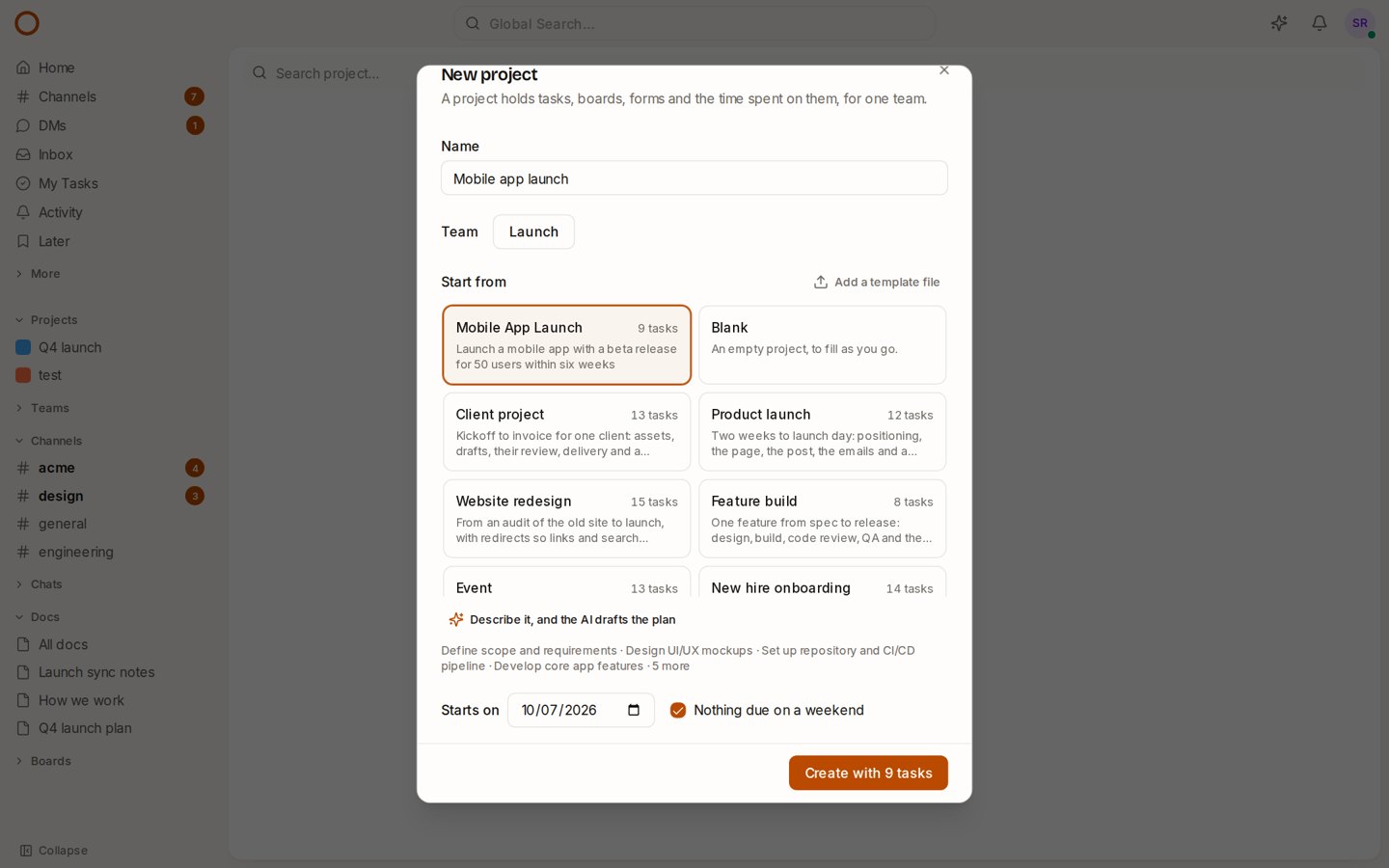
In New project, under the templates, there’s now Describe it, and the AI drafts the plan. Write what the project is and by when, in your own words:
Launch our mobile app in six weeks, with a beta for 50 users first
and press Draft the plan. The picture at the top is what comes back: a plan of nine tasks, first in the list and already chosen. Each task says what done looks like and has a priority and a date. The dates are spread over the six weeks you wrote, and the beta comes before the launch. If the work needs a review step, such as QA for an app, the plan adds that column to the board; most plans don’t need one.
Nothing is made yet. The line under the list shows the plan’s first tasks, and you can still pick a built-in template, start blank, or describe it again. Create makes the plan the same way it makes any template: every task in order, unassigned, dated from the day you pick.
Three things about how it works:
- It uses your workspace’s own AI. On a self-hosted OneCamp running a local model, your description never leaves your server.
- A small model is fine. A local model on a server’s CPU can take a minute or two to write a plan. The draft runs on the server and the app checks back until it’s ready, so a slow model never times out halfway. You can keep filling in the name and the team meanwhile, or press Cancel.
- The AI’s plan is checked like any template file, so a plan it got wrong comes back as a message to try again, never as a broken project. Small models tend to ignore the timeframe (“six weeks”, then a plan that ends on day 16), so OneCamp reads the timeframe from what you wrote and stretches the plan to fit.
Describe it is part of OneCamp with AI. The templates, and everything below, are in both editions.
Every template has a page
Each built-in template now has its own page on onemana.dev: Client project, Product launch, Website redesign, Feature build, Event, New hire onboarding and Security audit prep. Each page shows the whole plan week by week, with what done looks like for every task.
Use it in the live demo signs you into the demo with New project already open on that template. One more click and you’re looking at the plan as a real project, with its board and dates.
To start from one and change it, download the template file on the page and add it to your OneCamp with Add a template file.
The pages come from the same code that makes the projects. If a template changes in OneCamp, its page changes with it, so a page can’t promise a task the app won’t make.
Smaller things
- Links that start a project.
?open=createProject&template=client-projecton any page of your OneCamp opens New project on that template. Put it in your handbook next to “how we start a client project”. On the projects page,?new=client-projectis the short form. - Home has a new quick action, Project from a template.
- Every task in the built-in templates now says what done looks like. Before, 21 of the 64 were only a name.
Fixed
- The disk warning was missing on computers. An admin only saw it on a phone, where it showed twice. Both layouts now show the admin banners once.
- Saving a template-made project as a template reversed its subtasks and its same-day tasks.
- A cancelled subtask’s date could push a saved template’s whole plan later.
- Time zones where the clocks skip midnight (Santiago, Havana, the Azores): dates from a template could land a day early.
- A deleted template now frees its space.
- In a short window, the Create button in New project could be scrolled out of view. It now stays at the bottom of the dialog.
- The daily note from OneCamp AI no longer covers a dialog you have open. It waits until you close it.
- A page that loaded during a deploy and asked for the previous build’s stylesheet was left unstyled. It now reloads once, as it already did for code.
Try it
- Open the live demo on the templates, name a project, and press Describe it, and the AI drafts the plan.
- Browse all the templates.
- On your own server: onemana.dev/free gives you the install command, no email needed.
- The guide: Project templates.
- Already running OneCamp? Update to the latest release, with AI or without.