
If you’re new here: OneCamp is a self-hosted workspace (chat, tasks, docs, calls, calendar and AI agents) that you install on your own server. It is open source and free for up to 25 people.
Going through a long list of tasks with the mouse is slow: click a task, read it, close it, find the next one, open a dropdown, pick a status, and again for the next. The previous post put several views side by side. This one is about getting through the work in them quickly.
J and K
On a project’s List, its Board, or My Tasks, press J to move down and K to move up (the arrow keys work too). On a board, J and K stay in the column, and ← and → go to the next column at the same height.
Press Enter to open the task beside the list. Then keep pressing J and K: the panel follows, so you can read through a whole list one task at a time without touching the mouse. That’s how I triage on Monday mornings now.
Change twenty tasks at once
Press X to select the task you’re on. Shift + J or Shift + K adds the ones you pass over. With the mouse, Ctrl/⌘-click picks a task and Shift-click a run. On a list, every row has a box at its start, and the box in the header picks the whole page.
A bar appears at the foot of the list, and one key changes everything selected:
| Key | Change |
|---|---|
| S | Status |
| A | Assignee |
| T (or L) | Tags |
| P | Priority |
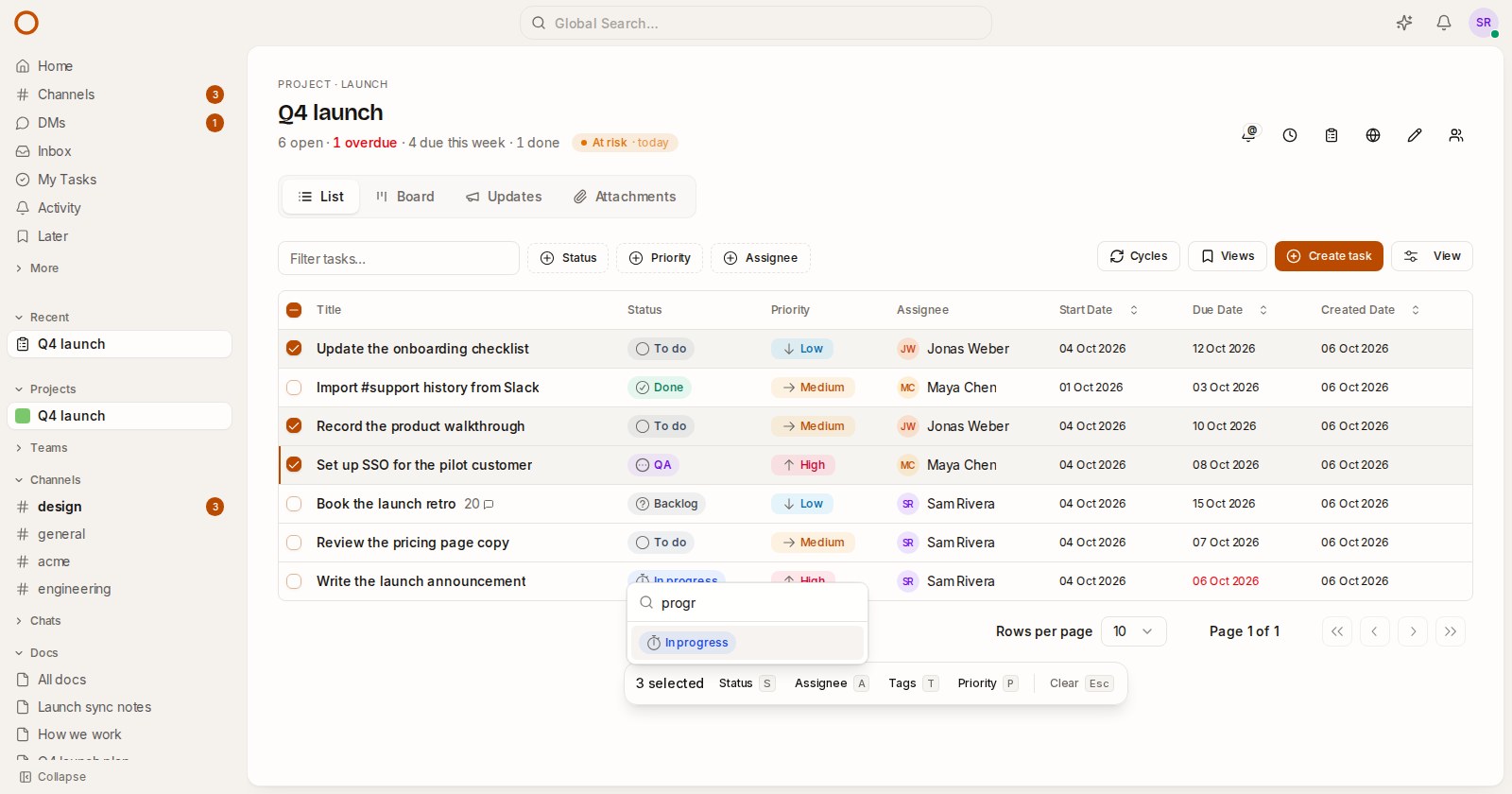
The picture at the top is three tasks selected, S pressed, and “progr” typed: Enter moves all three to In progress. Each picker starts with a search, so a change is a letter, a few characters and Enter.
Tags work the way you’d hope. If every selected task has the tag, picking it takes it off them all; otherwise it goes on the ones that don’t have it. With nothing selected, the same keys change the task you’re on.
Some details:
- Only a project’s admins can change its tasks, the same as one at a time. On My Tasks, where your tasks come from many projects, the ones you can’t change are left alone and the bar says how many.
- Each task is saved through the same path as a single change, so the people on it are told and a linked GitHub issue stays in step. If the server refuses one, it goes back to how it was, and you get one message for the lot, not one per task.
- Keys never fire while you’re typing. With views side by side, they act on the view you’re in.
G, then a letter
Press G and then a letter to go somewhere: H Home, C Channels, M messages, I Inbox, T My Tasks, D Docs, P Projects, K Calendar, and a few more. Press ? to see them all.
Also from this week: a task’s status list has Edit statuses… at the bottom, so adding a project’s own status (QA, Design review) no longer means finding the board’s View menu.
A call beside your work
The call button in a channel, a direct message or a group now opens the call beside the conversation, not in place of it. You can talk while you read the doc you’re discussing or move cards on the board, and the channel stays in view for whoever joins late.
A running call is protected. Opening something else never closes it, Swap leaves it where it is, and Focus on another view keeps it going, with On a call in the top bar to bring it back. Hanging up closes its view.
A tip on your first visit
New people now get a small card at the bottom left, once: Ctrl/⌘ K to find anything, Alt-click to open a link side by side, and ? for every shortcut. It goes away for good with Got it, or as soon as you press one of those keys yourself.
Fixed
- Dragging a card into another row and another column on a board sometimes failed and the card snapped back. The two changes were saved at the same moment and collided. The server now retries them.
- A doc you’d set aside with Focus left its drag handle floating over the page in front.
- A project’s admins couldn’t remove a comment on its tasks; only the person who wrote it could. Now they can, a client’s comment on a shared project included.
- Self-hosting: when the search server was briefly overloaded, the new content it turned away never made it into search or the AI’s memory. Those writes are now retried.
- Self-hosting: OpenSearch keeps an audit index for every day and never deletes any, so a year-old install carried 365 of them. OneCamp now deletes them after 90 days, and backups leave them out.
Try it
- In the live demo, open Q4 launch, press List, then J, X and S.
- On your own server: onemana.dev/free gives you the install command, no email needed.
- The guides: Lists and boards from the keyboard and Side by side.
- Already running OneCamp? Update to the latest release, with AI or without.