
If you’re new here: OneCamp is a self-hosted workspace (chat, tasks, docs, calls, calendar and AI agents) that you install on your own server. It is open source and free for up to 25 people.
This morning’s post was about letting clients into one channel. This one is about the two questions every client project ends up circling: where are we? and how much do we owe you?
The first is usually answered by a status email somebody writes on Friday, from a board the client can’t see. The second is answered at the end of the month from a timer app nobody remembered to start. Both now live where the work does.
Send the client their project
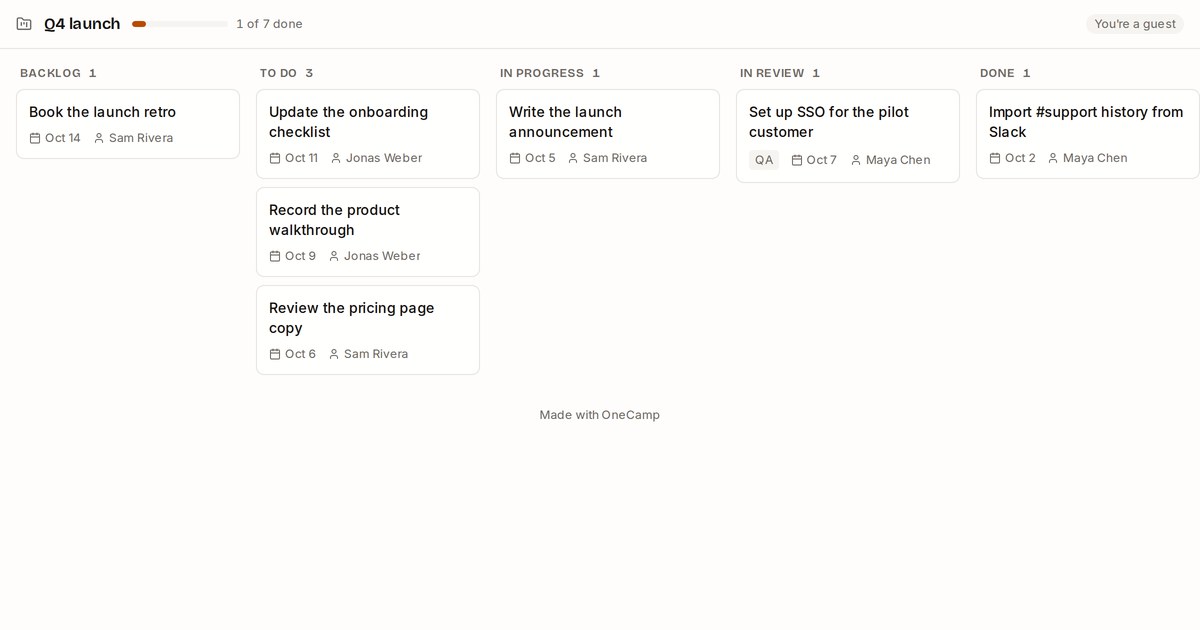
The picture at the top is what a client sees: the project’s tasks by status (backlog, to do, in progress, in review, done), how many are done, and for each task its dates and who has it. It refreshes on its own. Cancelled work is left out; a client has no use for it.
To share one:
- Open the project and press the globe button at the top (Share with a client).
- Pick how long the link lasts (7 days to 90, or until you turn it off) and what the client may do:
- Can see tasks: the board, and each task’s description and dates.
- Can see and comment: the same, plus the task’s comments, which they can read and add to.
- Press Create link, copy it, and send it. It’s shown once.
The client opens it in a browser. No account, no app, no password. The link reaches that one project and nothing else in your workspace: not your other clients, not your channels, not anyone’s profile.
When a client comments, it lands on the task with their name and “(guest)” after it, and the people on the task are told the way any comment tells them. It never goes to a linked GitHub issue: a client’s words aren’t yours to publish.
One thing to decide first. Task descriptions are shown to the client. If your team writes internal notes in descriptions, either keep those in comments and share with Can see tasks, or tidy the descriptions first.
Turn a link off
The same dialog lists the links that work right now, how long each has left, and which are yours. Turn off stops a link immediately. You don’t need to be a workspace admin to do it: whoever may share the project may turn its links off, which is what you want when a contractor rolls off or a client relationship ends. The same works for a shared channel, doc, board or table.
Track time where the work is
Agencies bill by the hour, and the hours are usually somewhere else. In OneCamp they go on the task:
- Start a timer. Open a task and press Start timer on its Time row. The timer then follows you around the app at the bottom of the screen, so you can’t leave it running in a task you’ve closed. Start one on another task and the first one stops.
- Or add time by hand. Press Add time, pick the day, and type how long:
45m,1h 30m,1:30or1.5hall work. Add a note, and untick Billable for time you won’t charge for. - Fix your own entries. Press logged next to the total to see every entry on the task; you can change or delete yours, and nobody else’s.
Turn the hours into an invoice
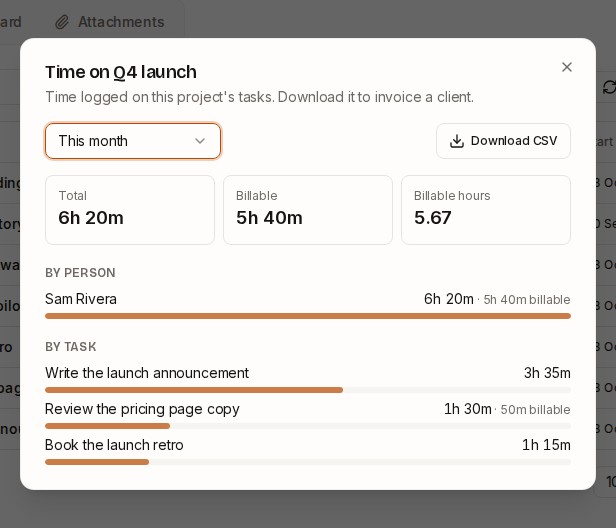
Press the clock button on a project. Pick a range (this week, last week, this month, last month or the last 30 days) and you get the total, the billable total and billable hours to two decimal places, then the same broken down by person and by task.
Download CSV gives one row per entry: date, start, end, person, task, hours, billable and note, in your own time zone, ready for a spreadsheet or your invoicing tool. If somebody typed a spreadsheet formula into a note, it’s neutralised, so opening the file can’t run it.
Why on your own server matters here
Client work is the data you least want spread across five vendors: what they asked for, what you said, how long it took. With OneCamp it sits on a server you control, the client sees exactly one project of it, and nothing you share depends on them signing up for anything.
Try it
- In the live demo, open Q4 launch and press the clock button: there are a few days of time already logged. Press the globe to make a client link and open it in a private window.
- On your own server: onemana.dev/free gives you the install command, no email needed.
- The docs: Share a project with a client and Time tracking.
These arrived in both editions of OneCamp on 5 October. If something you need with clients is still missing, write to [email protected].