
If you’re new here: OneCamp is a self-hosted workspace (chat, tasks, docs, calls, calendar and AI agents) that you install on your own server. It is open source and free for up to 25 people.
This morning’s post was about a delete that didn’t delete. This one is about boards: what changed since then, and what you can do with it.
A board grouped by person
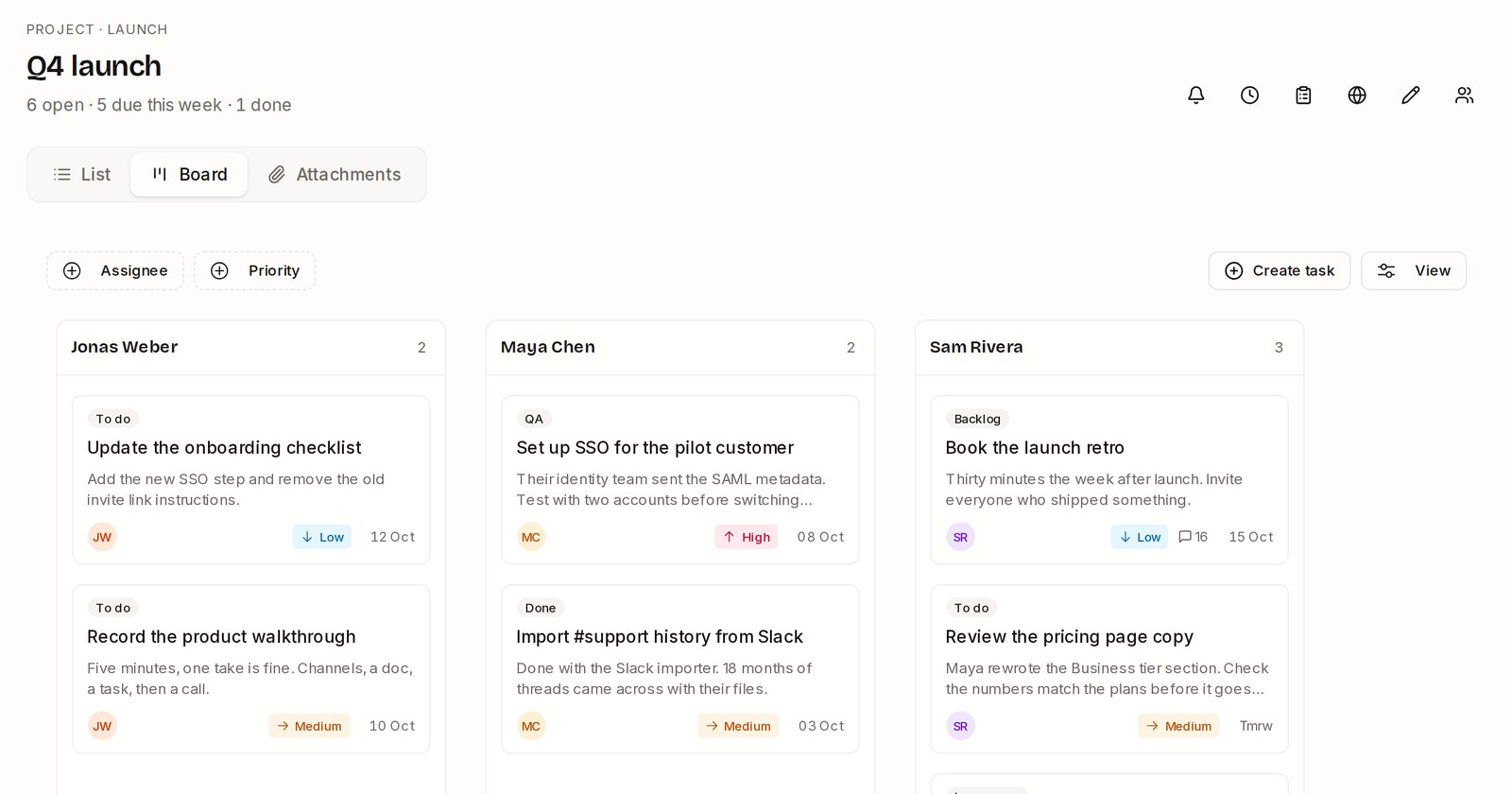
The picture at the top is a project board with a column for each person instead of each status. Open a project’s Board, press View, and under Group by choose Assignee.
What you can do with it:
- See who’s overloaded. Each column shows how many tasks that person has, and each card still shows its status (To do, In progress, QA, Done), so you can tell busy from finished.
- Hand work over. Drag a card from one person to another and it’s theirs. Drag it to No assignee to put it back in the pool.
- Give someone a task. Add task at the bottom of a person’s column makes a task that’s already assigned to them.
- Hide people with no tasks, from the same View menu, when a big team makes the board too wide.
The board remembers your choice for each project, so a manager can keep a project grouped by person while everyone else sees statuses. This is the view I reach for on Monday mornings: who has too much, and who’s free to take something.
Boards that stay fast with hundreds of tasks
Most kanban boards get slow once a project has a few hundred tasks, because every card is drawn at once. OneCamp’s boards now draw the first 30 cards in each column and add more as you scroll, so a big board opens and drags as quickly as a small one. The number at the top of each column still counts every task.
Done and Cancelled only ever grow, so they open with the newest 200. Under them, the board says “The newest 200 of 1240.” with a Show 200 more button. The list view has all of them.
Three smaller things that help on a long board:
- Add a task in a column. Add task at the bottom of each column: type a name, press Enter, and it lands there. The box stays open for the next one.
- Fold a column to a slim strip (handy for a long Done). The board remembers what you folded.
- Use the board on a phone. The project page on a phone now has a Board tab; swipe between columns, one per screen.
Fixed along the way: the project’s summary line said “200 done” when more were done, and the time report lost the names of tasks finished long ago. Both count everything again.
When you can’t do something, it says so
Until this week, dozens of actions you weren’t allowed to do (changing a channel’s agents without being a moderator, editing a team you don’t run) answered as if your session had expired. The app quietly refreshed and showed nothing, which looked like a bug. Now they say “You don’t have permission to do that”, or the server’s own reason, and a form with a bad value says what to fix. A test now stops any new permission check from going back to the old behaviour.
Also polished: the task panel’s labels stay on one line, and when a side panel leaves less room, task tables hide their least useful columns instead of scrolling sideways.
Without AI too
OneCamp comes in two editions, with AI and without. Some fixes had only reached the AI edition: people in DMs now show their display names, and bots appear among a conversation’s participants. They’re in the edition without AI now too, and a check compares the two editions so shared fixes stop drifting apart.
Try it
- In the live demo, open Q4 launch, press Board, then View → Group by → Assignee, and drag a task from one person to another.
- On your own server: onemana.dev/free gives you the install command, no email needed.
- Already running OneCamp? Update to the latest release, with AI or without.