
If you’re new here: OneCamp is a self-hosted workspace (chat, tasks, docs, calls, calendar and AI agents) that you install on your own server. It is open source and free for up to 25 people.
Some things take a paragraph to type and ten seconds to say. Some take a paragraph to type and one look at your screen to show. A call is too much for either. That’s what clips are for, and OneCamp has them now.
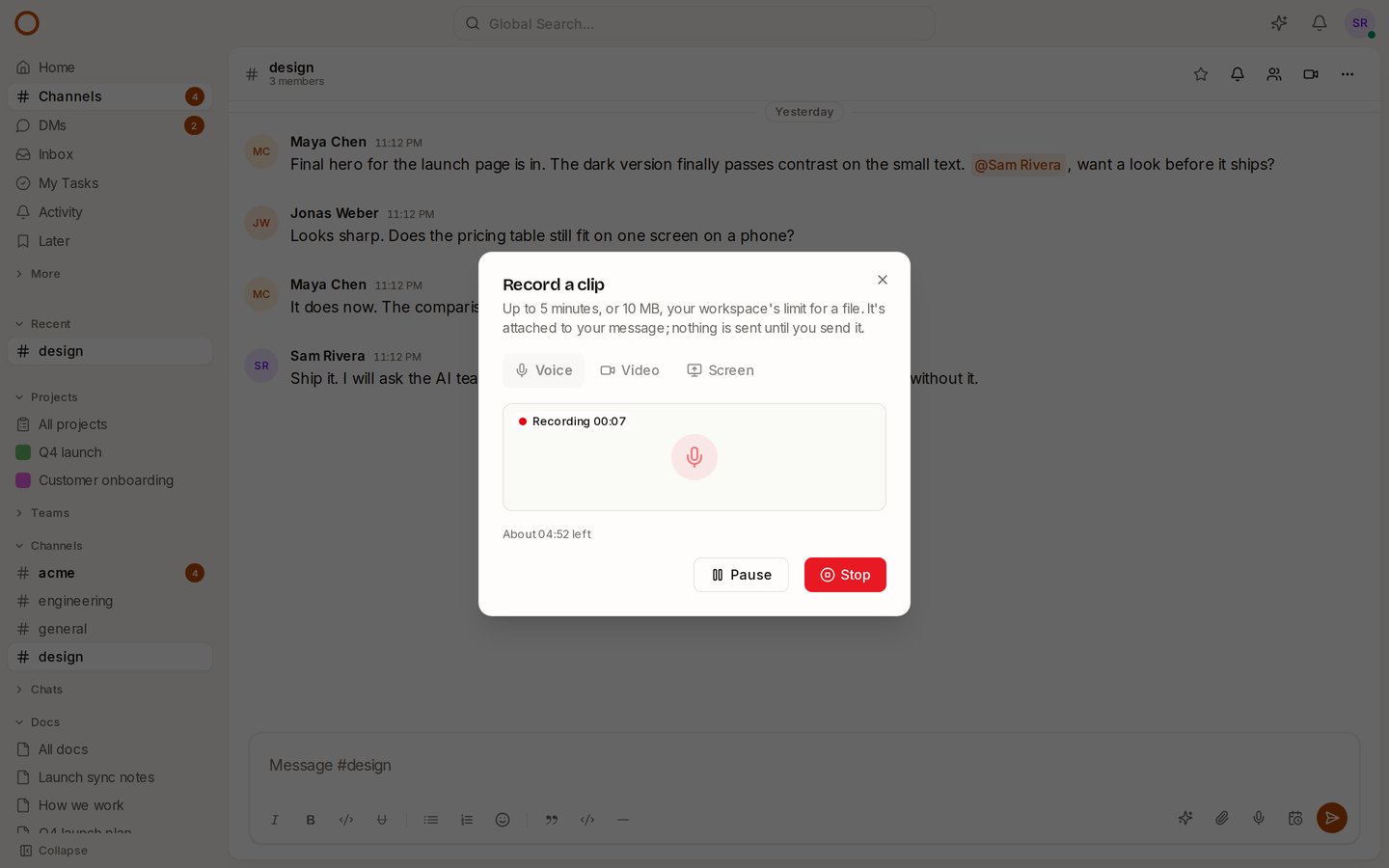
Three kinds
Press the microphone beside the paperclip in any message box (a channel, a DM, a group chat or a thread) and choose:
- Voice: a voice note.
- Video: you, on camera.
- Screen: a screen, window or tab, with your voice over it. Walk someone through a bug or a design without booking a call.
Record for up to five minutes. Pause when you need to, then Stop, play it back, and Attach clip or Record again. It’s attached to your message like any file, so you can add a line of text and send them together. Nothing leaves your browser until you send it.
Good to know
- A clip is a file like any other, so it lives on your server and follows your workspace’s upload limit for a file. The recorder shows how much time is left and stops at the limit; an admin can raise it in Admin → General.
- Voice clips play as audio, video and screen clips as video, right in the conversation.
- Your camera and microphone are released the moment the recorder closes.
How it compares
Slack has clips of up to five minutes on every plan, and Teams raised its video clips from one minute to five in 2025. OneCamp’s clips match them, and stay on your own server, with no seat to pay for.
Try it
- Open the live demo, go to #design, and press the microphone in the message box.
- On your own server: onemana.dev/free gives you the install command, no email needed.
- Already running OneCamp? Update to the latest release, with AI or without.