
If you’re new here: OneCamp is a self-hosted workspace (chat, tasks, docs, calls, calendar and AI agents) that you install on your own server. It is open source and free for up to 25 people.
If you run OneCamp, update now, with AI or without. This release includes a security fix to the first-run admin setup. Everything in this post is in the release, which you can install today: the release notes list it all, and the installation guide’s Updating section has the steps.
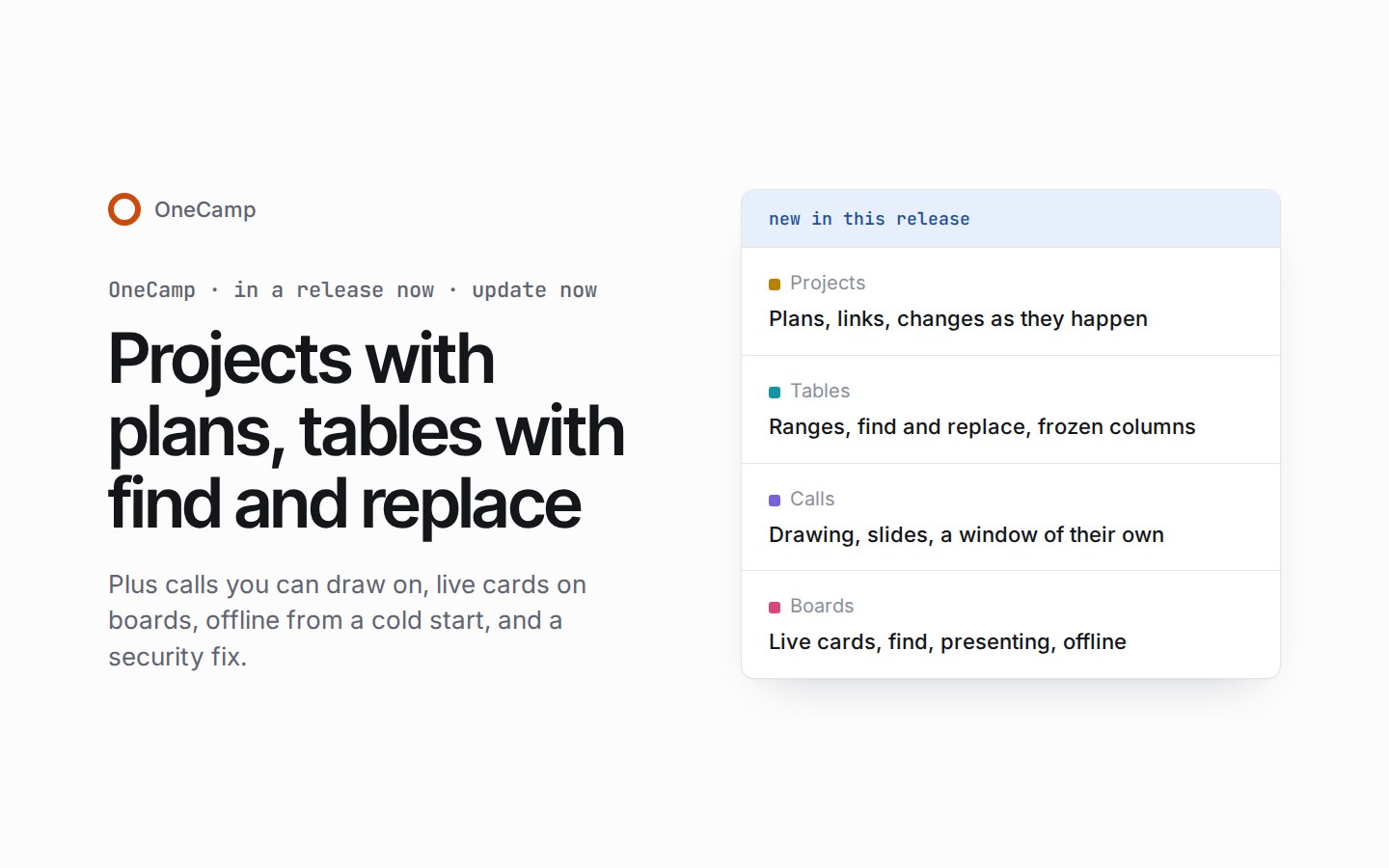
The last post, two days ago, covered the release with forms, forecasts and breakout rooms. This one picks up from there: projects that carry a plan, tables that work like a sheet, calls you can draw on, and boards that keep up with your work.
Projects that carry a plan
Every project’s home now shows its plan: where the project stands, in your workspace’s own statuses (grouped as planned, in progress, paused, done and cancelled), its priority, its lead, a start and a target date, and its labels. A date can be as exact as a day or as loose as a month, a quarter, a half or a year. A project’s admins choose the lead, whoever posts its updates sets the rest, and workspace admins keep the statuses and labels in the settings.
Beside the plan, cards link the project to its tools elsewhere, each with the picture and title its page gives. The project’s admins add, rename and remove them, and an address typed without https:// works too.
A teammate’s change now reaches an open board, list, timeline or task panel as it happens, and a task they make appears on your open board without a reload.
The command menu acts as well as finds. Press Ctrl+K (⌘K on a Mac) on a task to change its status, priority, assignee, tags, cycle or milestone, or on a list’s selection to change them all at once. Type t, p, u, d or c and a space to search only tasks, projects, people, docs or channels, and press Space to preview a result beside the list before you open it.
Tables that work like a sheet
Select a block of cells with the keys, the mouse or a long press. Copy it, paste a sheet over it, clear it, fill a series with the fill handle or copy down with Ctrl+D, and take any of it back with one Ctrl+Z.
Ctrl+F finds across every row of a view, not only the rows on screen. Each match is tinted and brought into sight, and you can replace one match or all of them, each with its own Undo. Clean-ups remove duplicates, trim stray spaces and split a column, with one Undo for each step.
Up to three leading columns can stay in place as a table scrolls sideways: freeze them from a column’s menu, and saved views keep them. And a table in the trash now says who deleted it and when it goes for good.
Calls you can draw on
A call can pop out into a small window of its own, dressed like the call, so it stays in sight while you work in another tab.
On a shared screen, everyone in the call can draw, each in their own colour, which also marks their face, their speaking ring and their captions. Put a board on the call’s stage and it plays as slides, with the presenter moving everyone frame by frame. The stage now shows up to 7 by 7 faces with pages, every screen being shared at once and a strip with +N for the rest, and a shared tab sends its sound too, without sending the call’s own sound back.
Events keep what happened in their calls. An event’s organiser can record its call onto the event, and choose whether guests invited by email knock before they join. The event then keeps the call’s recordings, transcript and notes: whoever may read the event can play them, and whoever may change it can delete them, with Undo. Deleting a recording in a channel or a conversation can be undone too.
Boards, offline and the rest
- Live cards. Add from OneCamp puts a task, a doc or a file on a board as a card that stays up to date.
- Find on boards. Find a board’s words and replace them, and a search hit opens the board at its words.
- Presenting. An editor can bring everyone to their view once, and a presenter keeps everyone on theirs; anyone following joins the presenter’s view as presenting starts.
- Offline from a cold start. Tasks open and edit with no network even when OneCamp starts offline, and every card on a board you kept opens whole. A page in the app’s own colours says why anything else can’t open, and signing out lets go of everything kept on that device.
- Calendar. The event form sets a working location and shows where guests are working that day, a direct message shows the other person’s calendar status, and guest lists say when someone is out of office.
- Who and when. Taking someone off a restricted task, leaving a project, taking away a project role, stopping a calendar share or withdrawing an invitation now keeps a record of who did it and when.
Among the fixes: someone who could only read a board could still change it while it was open, and now can’t; search shows a repeating event at its next time; lists for picking a project leave archived ones out; and on a phone, toasts keep clear of an open sheet. With AI, a question too large for the model is now fitted to it and asked again, instead of ending in an error.
Before you update
The steps are under Updating on the installation page, and the changelog has the details.
- A backup first. The release applies 11 database migrations after taking a backup. Going back to an earlier release isn’t supported, so that backup is the way back.
- The web app with the server. Update the web app with the server. If you host the web app yourself, deploy the new one at the same time, and anyone with OneCamp open should reload it once the update is done.
- A workspace with no admin. If a workspace has no admin left, the guide’s section on restoring an admin shows how to make a member who has signed in its admin again.
- Scripts and integrations. Webhooks can now send
task.updatedfor every change to a task’s fields, with what each field held before, and making a sub-task sendstask.createdwith its parent. New routes cover project plans and links, a table’s find and replace, and an event’s call recordings, and existing routes keep their paths.
What’s next
The live demo keeps moving, and the next post will say what reached it. If you run OneCamp, update now to get the security fix and everything above; if you don’t yet, the live demo is the quickest way to try it.