
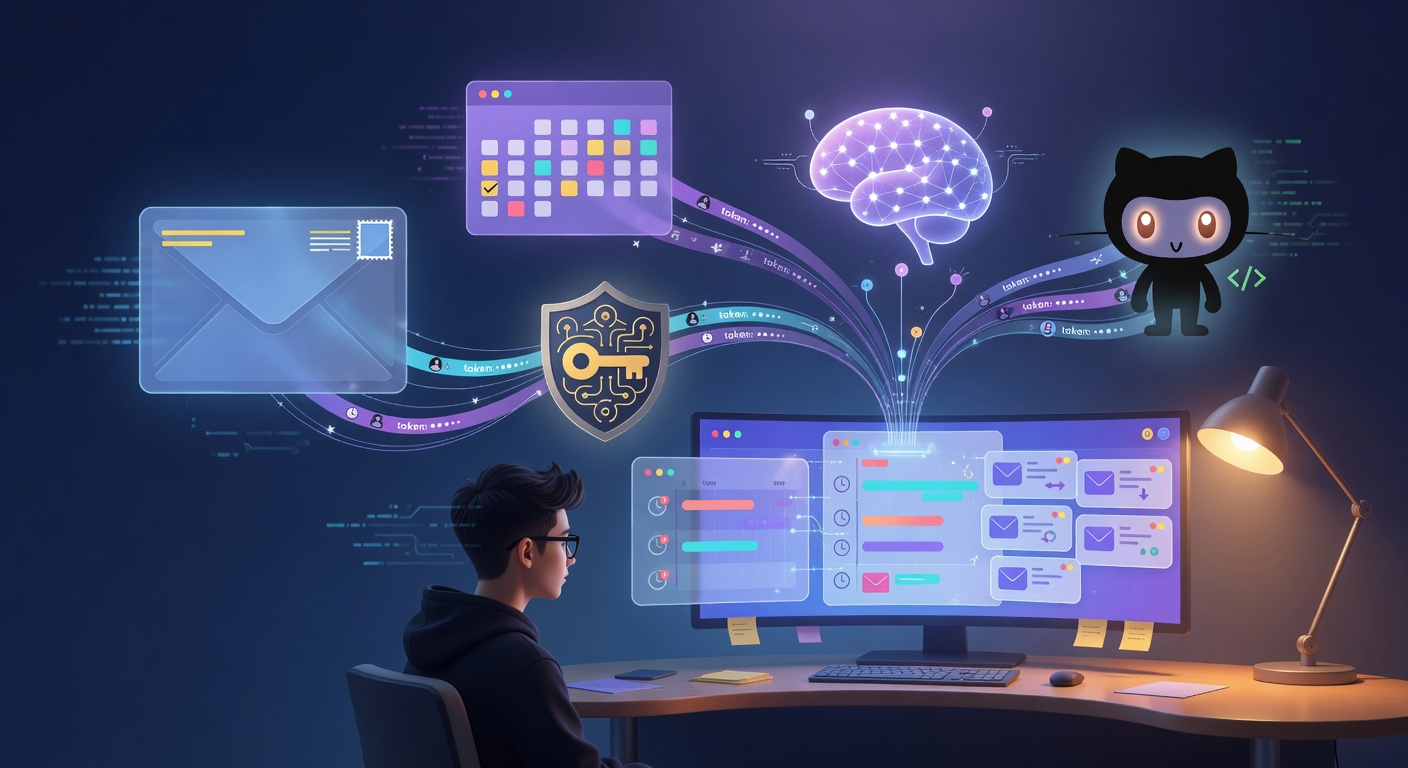
Every AI assistant has a context problem.
You ask it “what’s on my plate today?” and it knows what’s inside your workspace — messages, tasks, docs. But it has no idea about the email thread you’ve been going back and forth on since Monday, or the PR that’s been sitting in review for three days, or the three back-to-back meetings you have tomorrow morning.
The moment I realized that, I understood why Anthropic built Claude Connectors, why ChatGPT has plugins, why every serious AI assistant eventually tries to reach outside its own database. The value isn’t in answering questions about a single silo — it’s in synthesizing across all your tools at once.
So I built connectors for OneCamp. This is how I designed them, what tradeoffs I made, and why the self-hosted constraint makes the privacy story here genuinely different from what you get with any cloud AI assistant.
What Connectors Actually Are 🔌
A connector is a per-user OAuth link between OneCamp and an external service. Not a workspace-level integration — per user. When you connect Gmail, you’re authorizing the AI to read your emails. When the person sitting next to you connects Gmail, they’re authorizing the AI to read theirs. The tokens never cross.
This distinction matters a lot and I’ll come back to it.
Right now, three connectors ship with OneCamp:
- Gmail — reads unread mail, threads, and labels
- Google Calendar — reads upcoming events, your schedule for the day
- GitHub — reads your assigned PRs, open issues, recent activity
And they interact with the AI in two modes:
On-demand: You ask the AI something directly. “Check my email.” “What’s on my calendar tomorrow?” “Show me my open PRs.” The AI resolves your connector, calls the relevant API, and returns the answer in chat.
Proactive briefing: Every morning when you open OneCamp, the personal briefing includes a “Your day” section that pulls across your linked connectors — merging upcoming meetings, urgent unread threads, and open PR reviews into a single view you didn’t have to ask for.
How the Authentication Flow Works 🔐
Connectors reuse the OAuth clients already configured by the workspace admin — the same Google OAuth client used for Google Calendar sync, the same GitHub OAuth client used for repository integration. Connectors don’t need separate credentials.
The flow:
User clicks "Connect Gmail"
→ GET /connectors/gmail/connect (authed endpoint, resolves user from JWT)
→ Generate OAuth state nonce (stored in Redis, 10-min TTL, bound to userUUID)
→ Return Google authorize URL with state, client_id, scopes, redirect_uri
→ FE redirects browser to Google consent screen

User grants permission on Google
→ GET /connectors/gmail/callback?code=xxx&state=yyy (unauthed — public OAuth redirect target)
→ Validate state: GETDEL from Redis, verify it matches, extract userUUID
→ Exchange code for access_token + refresh_token
→ Encrypt token (AES-256-GCM), store in integrations table
→ Redirect back to /app/settings/connectors?connector=success
The state nonce is consumed on use (GETDEL) — it can’t be replayed. The callback is unauthenticated because OAuth redirects don’t carry our JWT, but the state ties the callback to the exact user who initiated the flow.
Token storage is the same integrations table used everywhere else in OneCamp — entity_type=”connector”, entity_id=user_uuid, provider=”gmail_connector” (or “github_connector”, “google_calendar”). The access and refresh tokens are AES-256-GCM encrypted before they write to Postgres. The API never returns the raw token. Not even to the user who owns it.
The AI Tool Executors 🛠️
The connectors talk to the AI through a structured executor layer. Each connector registers its capabilities as AI tool schemas:
// Gmail executor
{
    Name:        "get_gmail_inbox",
    Description: "Fetch recent unread emails from the user's Gmail inbox",
    Parameters: map[string]interface{}{
        "max_results": "integer — max emails to return (default 10)",
        "label":       "string — Gmail label filter (optional)",
    },
}

// GitHub executor
{
    Name:        "list_github_prs",
    Description: "List open pull requests assigned to or created by the user",
    Parameters: map[string]interface{}{
        "state": "string — open | closed | all (default open)",
    },
}
When the AI decides it needs to check your email, it calls the tool. The executor resolves your token (not a shared service account — your token, keyed to your UUID), makes the API call with it, and returns the result.
The critical thing about this design: the executor resolves the token from the requesting user’s UUID, every time. There’s no way for it to use someone else’s token. The connector layer doesn’t even expose a way to pass a different user ID — it takes the user from request context.
func executeGmail(ctx context.Context, userUUID string, params map[string]string) (string, error) {
    token, err := connectorBusiness.GetToken(ctx, userUUID, connectorBusiness.ProviderGmail)
    if err != nil || token == "" {
        return notConnectedMsg("Gmail"), nil // friendly nudge, not an error
    }
    // ... call Gmail API with this user's token
}
If you haven’t connected Gmail and the AI tries to check your email, you get: “🔌 Your Gmail account isn’t connected yet. Open Settings → Connectors to connect it, then try again.” Not a crash, not a permissions error — just a nudge.
Write Actions Require Confirmation ✋
Reading email is one thing. Sending email is another.
The rule I set from the start: the AI can read anything it has access to, but any write action — sending email, creating a calendar event, commenting on a GitHub issue — requires explicit user confirmation before it executes.
This is the same pattern I use for the workspace AI’s task/calendar actions. The AI proposes an action, the user sees a confirmation card, and only after clicking Confirm does it execute.
User: "Send a reply to that email from Marcus about the API deadline"
AI: ✉️ Draft reply to Marcus Chen:
    "Hi Marcus, we're targeting the 15th for the API. I'll update the ticket."
    [Confirm Send]  [Discard]
An AI that silently sends emails on your behalf is a liability, not a feature. The confirmation adds one click. That click is worth it.
The Briefing Integration: Your Morning Context 🌅
The part of connectors I’m most happy with is how they feed into the personal briefing.
Every time you load OneCamp, a background fetch assembles your personal briefing: unread channel messages, upcoming meetings from your calendar, AI-extracted decisions and commitments from yesterday’s discussions. Since adding connectors, the briefing also includes a “Your day” section that merges across your linked services:
- Upcoming calendar events (next 24 hours, from Google Calendar)
- Unread high-priority emails (from Gmail)
- Open PRs waiting on your review (from GitHub)
These are fetched concurrently and merged into a single unified view:
// briefingConnectors.go
func gatherConnectorDay(ctx context.Context, userInfo userModels.UserInfo) []BriefingDayItem {
    var wg sync.WaitGroup
    items := make(chan BriefingDayItem, 50)

    if connected(ctx, userInfo.UUID, ProviderGoogleCalendar) {
        wg.Add(1)
        go func() { defer wg.Done(); fetchCalendarItems(ctx, userInfo, items) }()
    }
    if connected(ctx, userInfo.UUID, ProviderGmail) {
        wg.Add(1)
        go func() { defer wg.Done(); fetchGmailItems(ctx, userInfo, items) }()
    }
    if connected(ctx, userInfo.UUID, ProviderGitHub) {
        wg.Add(1)
        go func() { defer wg.Done(); fetchGitHubItems(ctx, userInfo, items) }()
    }
    // ...
}
All three run in parallel. The briefing has a hard timeout — if the connectors are slow (external APIs sometimes are), the rest of the briefing ships without them rather than making you wait. The result is cached per-user for a few minutes so repeated home screen loads don’t hammer external APIs.
The frontend hides the “Your day” section completely when no connectors are linked — no empty state, no “connect your accounts” nagging. It just silently appears the first time you have something connected and have upcoming events.
The Privacy Argument I Actually Believe 🔒
Here’s the part that I think is genuinely underappreciated about building this on a self-hosted stack.
When you connect Gmail to ChatGPT or Claude, the email contents go to OpenAI or Anthropic’s servers. They use it to answer your question, presumably don’t train on it, and presumably delete it. You’re trusting their privacy policy and their security posture.
When you connect Gmail to OneCamp, the email API call is made from your server. The content goes to your Postgres (encrypted). The AI inference happens on your Ollama instance or with your own API key on your own account. Nothing passes through a third-party aggregator that has no contractual relationship with your organization.
For a company with any kind of compliance requirement — healthcare, legal, finance, government — this isn’t just a nice-to-have. It’s the only acceptable model.
And for individuals who just don’t want a SaaS company having a full map of their email, calendar, and code activity: same thing. You own the data. It lives on your server. It doesn’t feed into anyone’s product analytics.
I’m not naive about the tradeoffs of self-hosting. There’s operational overhead. You’re responsible for backups, updates, uptime. But the privacy and control story is real, not marketing copy.
Where to Find This in OneCamp 🗺️
If you’re an existing OneCamp user: click your avatar → Connectors, or open the command palette and search “Connectors.” You’ll land on a page that shows each available connector with exactly what permissions it needs (read vs. write is clearly labeled), connection status, and a Connect/Disconnect button.
One prerequisite: connectors only show up if your admin has configured the underlying OAuth app for Google or GitHub. If the page says “No connectors are available yet,” that’s the conversation to have with your admin. Once the OAuth credentials are set up workspace-wide, every user can connect their own account independently.
After connecting, the AI in any chat surface can use your linked accounts. Just ask naturally: “what’s my calendar today?”, “any urgent emails?”, “show my open PRs.” The AI figures out the right tool call from context.
What’s Next 🔮
The three connectors that ship today (Gmail, Calendar, GitHub) were chosen because they represent the three biggest sources of context that live outside a workspace tool — communication, schedule, and code. They’re the ones that make the answer to “what’s on my plate?” actually complete.
The obvious next connectors are Slack (for teams migrating to OneCamp who need historical continuity), Linear or Jira (for engineering teams), and Google Drive. The architecture is designed for this — adding a new connector is implementing the Provider interface and registering the executor. The infrastructure for OAuth, token storage, encryption, and tool dispatch is already there.
The larger ambition is what I’d call a unified context layer — your workspace AI having a complete picture of your working context across every tool you use, all of it on infrastructure you control. Connectors are the first step toward that.
OneCamp is available as a self-hosted lifetime purchase at onemana.dev — one payment, unlimited users, your server.
Previous posts: Slash Command App Platform · AI-Agnostic Workspace with Active Memory Layering · Universal Import Engine · Building the Anti-SaaS Workspace
Follow on Twitter for more updates.