
If you’re new here: OneCamp is a self-hosted workspace (chat, tasks, docs, calls, calendar and AI agents) that you install on your own server. It is open source and free for up to 25 people.
Everything in this post is on the live demo now. It isn’t in a release you can install yet; when it is, the release notes will say so.
The last post, five days ago, was about threads to follow and docs on the web. Since then, the releases you can install have had a run of security and reliability fixes. If you run OneCamp, keep it updated; the installation guide’s Updating section has the steps.
Most of the work went onto the demo. I keep a row-by-row comparison of OneCamp against Asana, Jira, Linear, Google Calendar, Airtable, Google Sheets, Zoom and others, and this week went to the rows where we were behind.
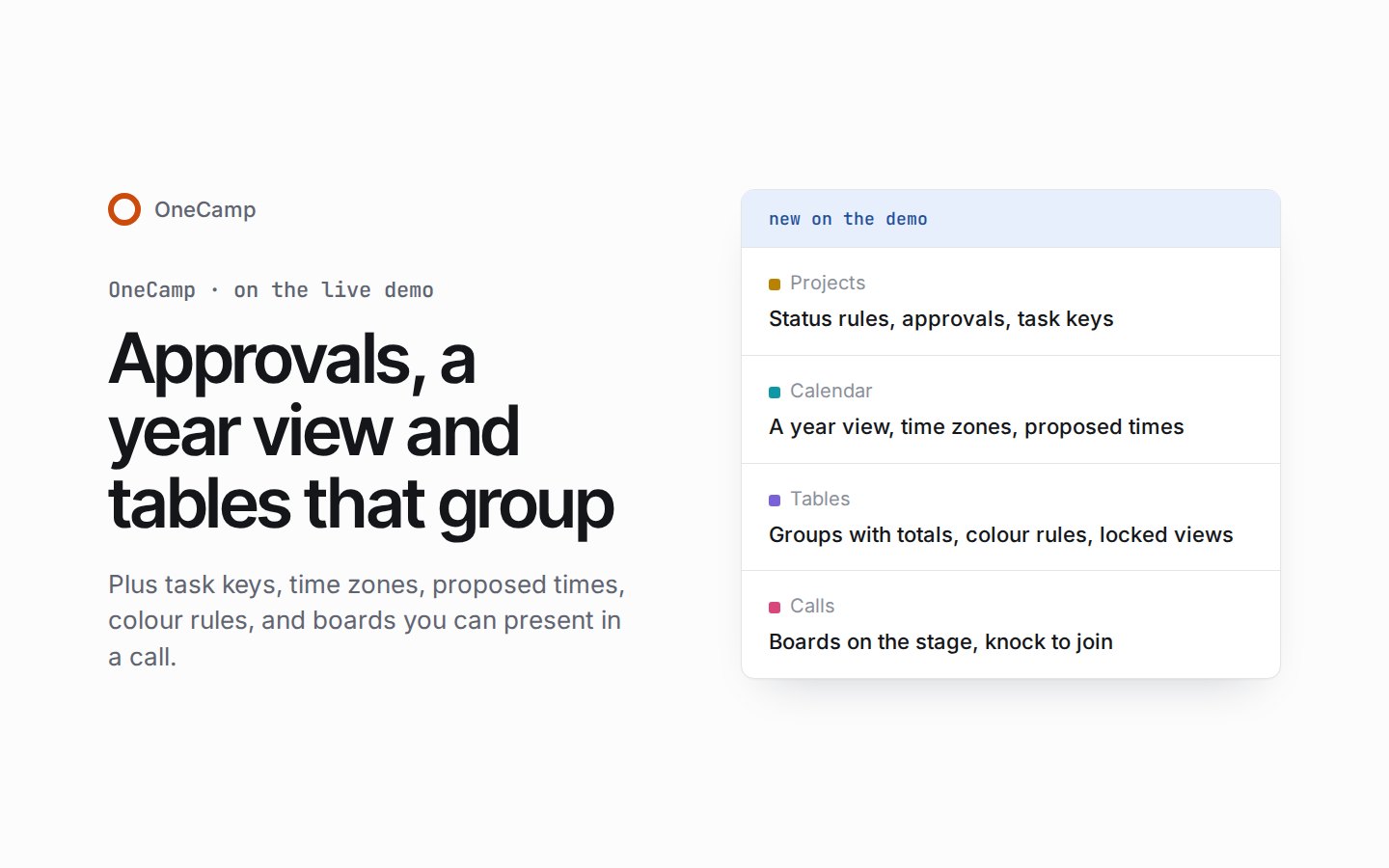
Projects: approvals and status rules
A project’s admins can now set rules for each status:
- Who may move tasks into it: anyone, admins only, or people you name.
- What a task needs first: an assignee, a due date, a tag or a description.
- Who has to approve the move: one person, two of three, or the client.
A move that needs approval becomes a request. The card stays where it was and shows that it’s waiting. The approver gets a card on the task to approve, ask for changes or reject; asking for changes needs a few words. If the task moves another way in the meantime, or is deleted or archived, the request closes by itself, so a late approval can’t pull a task back.
Every path that makes or moves a task is checked: the board, the task page, the API, rules and agents. A refusal says why in words: “Give it an assignee and a due date before moving it to In review.”
Task keys, and a link that fills in a task
Every task has a key such as ADD-1, shown in mentions, in hover cards and in the task’s header.
A link like /app/create/task?title=…&status=In review&priority=high&assignee=me&due=… opens New task with every field already filled, on a computer or a phone. Keep one in your bookmarks for the tasks you make every week.
Calendar: a year view, time zones and proposed times
- A year view, shaded by how busy each day is, alongside Day, Week, Month, Agenda and a custom range of days.
- Fit my hours, a density that fits your working day to the screen, next to Roomy and Compact.
- Print, and a link that opens the exact view you’re looking at.
- Block time for a task by dragging it onto the grid. The block links to its task, shows its state, and counts as busy.
- Time zones. An event keeps its own time zone, and a different one for its end if a flight crosses zones. Your own zone is in Settings, and Find a time shows each person’s local time: “9:30 AM for Maya (Los Angeles) · 4:30 PM for Jonas (London)”.
- Propose a new time. A guest, even one without an account, can answer Maybe with a note and propose another time from their own page. The organiser sees the proposal beside the answer, and Use this time asks whether to tell the other guests.
Tables that group and colour
- Formulas, and links between tables that add up what’s linked.
- Groups up to three levels deep, with a count and a total in every group header. The server works them out, so they’re right for a table of any size.
- Colour rows by a field, or by rules such as “Amount over 400 in berry”.
- Shared and locked views. Save a view with nested filters for everyone and lock it; anyone who wants to change it saves a copy of their own. A view’s link opens it exactly as saved.
- A summary bar with sums, averages and counts. An import of thousands of rows is answered by the server within seconds.
Calls: boards on the stage
- Present a board in a call. Share a board to the stage from the Share menu, or start a new one there. Meeting guests see it, and draw on it once you let guests draw.
- Knock to join. A guest who knocks shows up on the host’s screen at once, with Admit.
What’s next
Next up are whiteboards that hold their own against Miro, cycles and planning that hold their own against Linear, and colour scales and cell formatting that hold their own against Google Sheets.
If you want to try any of this, the demo needs no account. If you’d rather run OneCamp yourself, the installation guide walks you through it.